Basics of working with diagrams
Directory tree
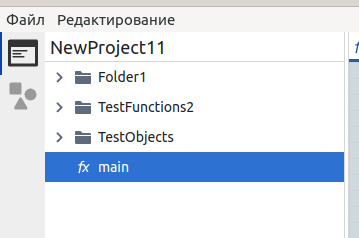
Section titled “Directory tree”On the left side of the application there is a directory tree. To create a folder or outline, right-click on an empty space.
Insert / delete
Section titled “Insert / delete”To insert an icon, right-click on the valence point and click on the menu item with the corresponding icon. To delete - right-click on the icon and select “delete”.
If you need to copy an icon to another location, select the “copy” item on the icon, and select “paste” at another valence point.
Depending on the location of the valence point, the program can offer various options for insertion.
Transfer
Section titled “Transfer”To transfer an icon, hold down the mouse button over it and drag it to the valence point to which you want to transfer this icon.
To transfer a group of icons, first click on one icon, then, with the Shift key pressed, click on another icon located on the same skewer. Then transfer this group of icons to the desired valence point.
Copy / paste
Section titled “Copy / paste”Right-click an icon and choose Copy to copy it together with everything inside it. If the icon is part of a group selected with Shift, the whole group is copied.
To paste, right-click a valence point and choose Paste. The item appears only where the copied icons are allowed: in a document of the same type (in workflows, also between functions and triggers) and in a place that accepts these icons. Each paste creates new copies, so you can paste the same icons several times.
Resizing
Section titled “Resizing”To change the width of an icon, click on it, and then drag the round slider on the right edge.
Edit icon
Section titled “Edit icon”To edit, double-click on the icon. Depending on the type of diagram and icon, different editing methods will be possible.
“Outputs”
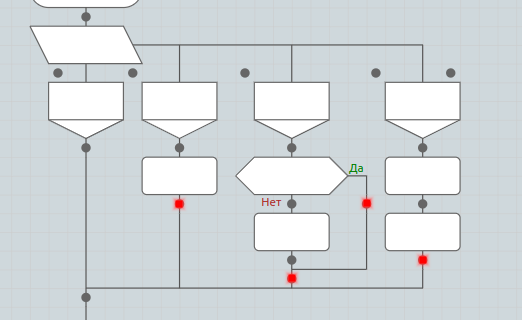
Section titled ““Outputs””Exit icons (break, continue, return, throw) appear in the menu if the valence point satisfies the following conditions:
- The valence point is the last one in this skewer
- The skewer is not on the main axis of the algorithm or this macro icon
In the image below, the valence points where the “Exit” icon can be used are marked in red