Base icons
Basic concepts
Section titled “Basic concepts”Basic terminology migrated to Falang from the visual language Dragon
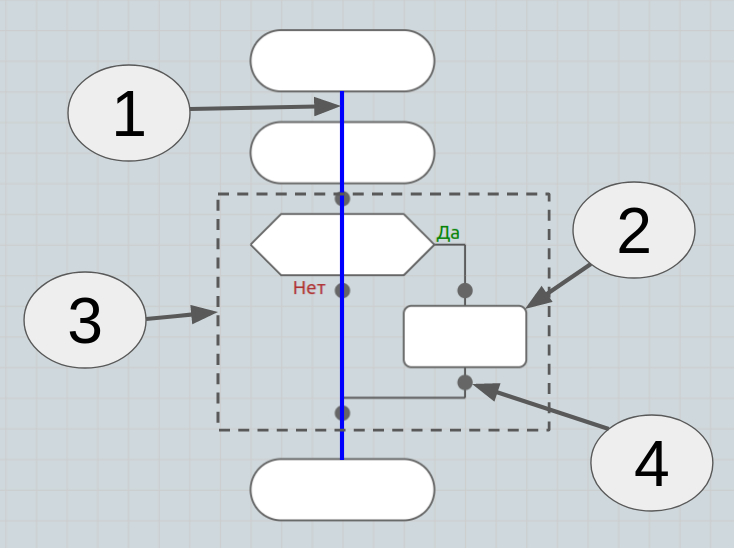
- Skewer: a vertical line on which icons are “skewered.”
- Action icon: an atomic part of the circuit that specifies a specific action.
- Macro icons: composite icons that can contain branches, child icons and skewers within themselves.
- Valence point: a place in the algorithm where other icons can be inserted.
Simple icons
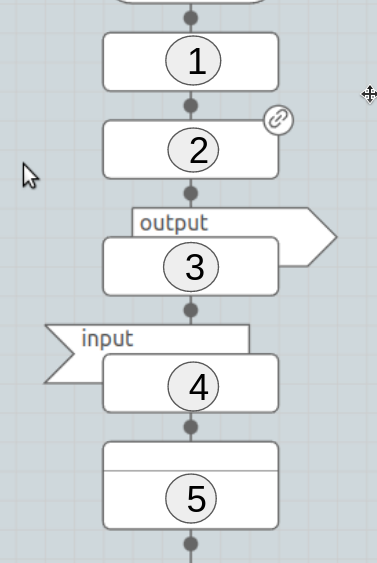
Section titled “Simple icons”- Action
- Link: If an action links to another diagram, a link icon appears in the corner, clicking on which will take you to the corresponding diagram.
- Output: output data.
- Input: Used to enter data.
- Shelf: similar to the “action” icon, with two fields for entering text.
Function
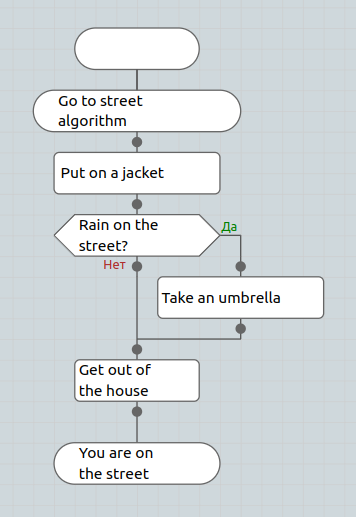
Section titled “Function”A function is a macro-icon, which is the only and main one on a diagram of the corresponding type. It consists of three blocks:
- Title, or comment: can be used for extended description
- Name
- Final block
Life rhythm
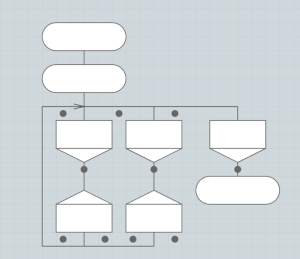
Section titled “Life rhythm”A function is a macro-icon, which is the only and main one on a diagram of the corresponding type. An analogue of the “Silhouette” icon in the Dragon. Allows you to conveniently describe long-term life algorithms.
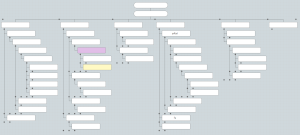
A function is a macro-icon, which is the only and main one on a diagram of the corresponding type. Allows you to describe tree-like data structures.
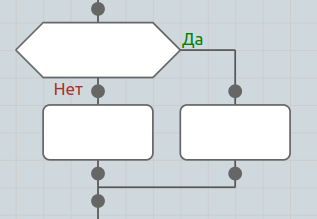
A macro icon of a conditional operator that directs the action of the algorithm depending on the fulfillment of the condition described in the main block. Analogous to “if - else” in programming.
Switch
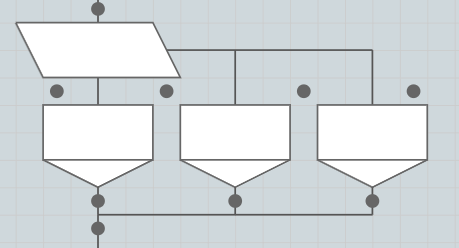
Section titled “Switch”A switch macro icon that directs the action of the algorithm to a specific child skewer if the value in the main block matches the value in the variant block. Analogous to “Switch” in programming.
Parallel execution
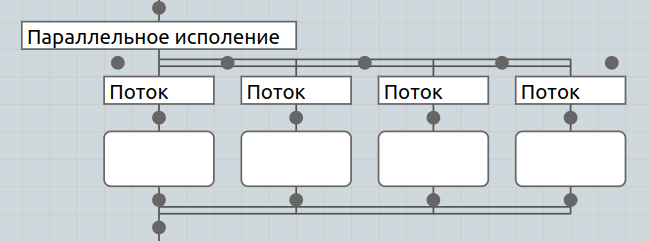
Section titled “Parallel execution”Macro icon that executes child skewers in parallel. The action moves on only after all parallel processes have completed.
A cycle for everyone
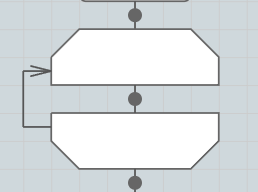
Section titled “A cycle for everyone”Macro icon passing through a data array, or for a variable from the minimum value to the maximum. Similar to for each.
Loop with condition
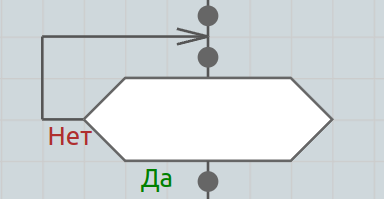
Section titled “Loop with condition”A macro icon that repeats the execution of a process while some condition is met. Analogous to while.
Pseudo loop
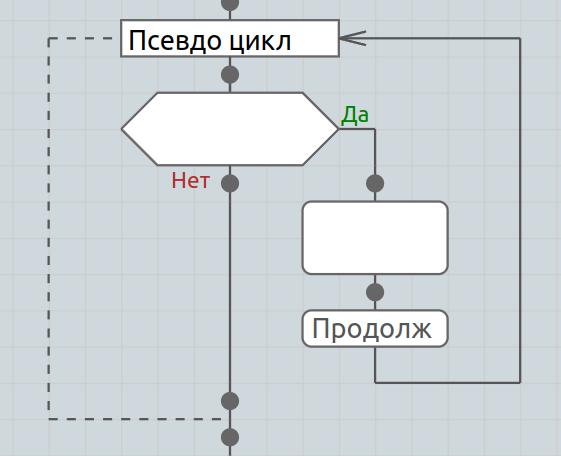
Section titled “Pseudo loop”A loop that actually executes once. Used to use exit or continuation icons (continue, break).
“Outputs”
Section titled ““Outputs””“Outputs” is a generalized name for a group of icons that change the forward flow of the algorithm.
- Exit - exit from the loop (analogous to break in programming)
- Continue - continue the cycle from the beginning (analogous to continue)
- Return - return from a function (analogous to return)
- Error - interruption of the algorithm as a result of an error (analogous to throw)
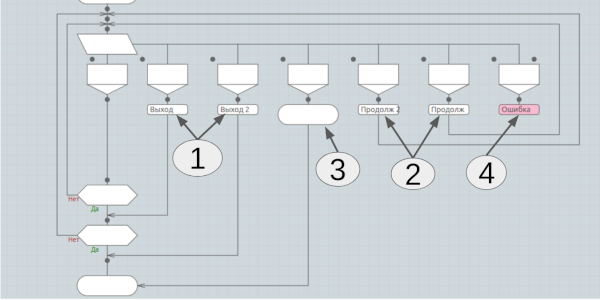
In the case of nested loops, the “Exit” and “Continue” icons at the end have indexes 1,2,… The index indicates the level of the outer loop to which the exit applies.
In a function that returns nothing, Return looks like Exit and Continue — just a label. In a function
with a return value it is a titled block holding the returned expression, checked against the function’s return
type; a new Return returns returnValue (the function’s result variable) by default.
Comment
Section titled “Comment”A comment is a note for the reader, drawn as a sheet with a folded corner. It holds plain text and never affects execution — in generated code it becomes a code comment. Insert it from the insertion point’s context menu (“Comment”). Available in workflow functions for now.
A timer is a side icon attached to the left of another icon. It marks a pause or wait (the DRAKON timer annotation) and holds its own text, for example the delay duration. A timer is an addition to an icon, not a step of its own: it does not affect the order of execution.
In text projects a timer can be attached to Action, Link, “If”, Switch, Loop for each and Loop with condition. Right-click the icon and choose “Timer”. Double-click the timer to edit its text, drag its edge to resize it, and right-click it and choose “Delete” to remove it. Each icon can have one timer.